Reports
Reports allow you to share your analysis data with anyone. No account required. Check out an example report.
Create a New Report
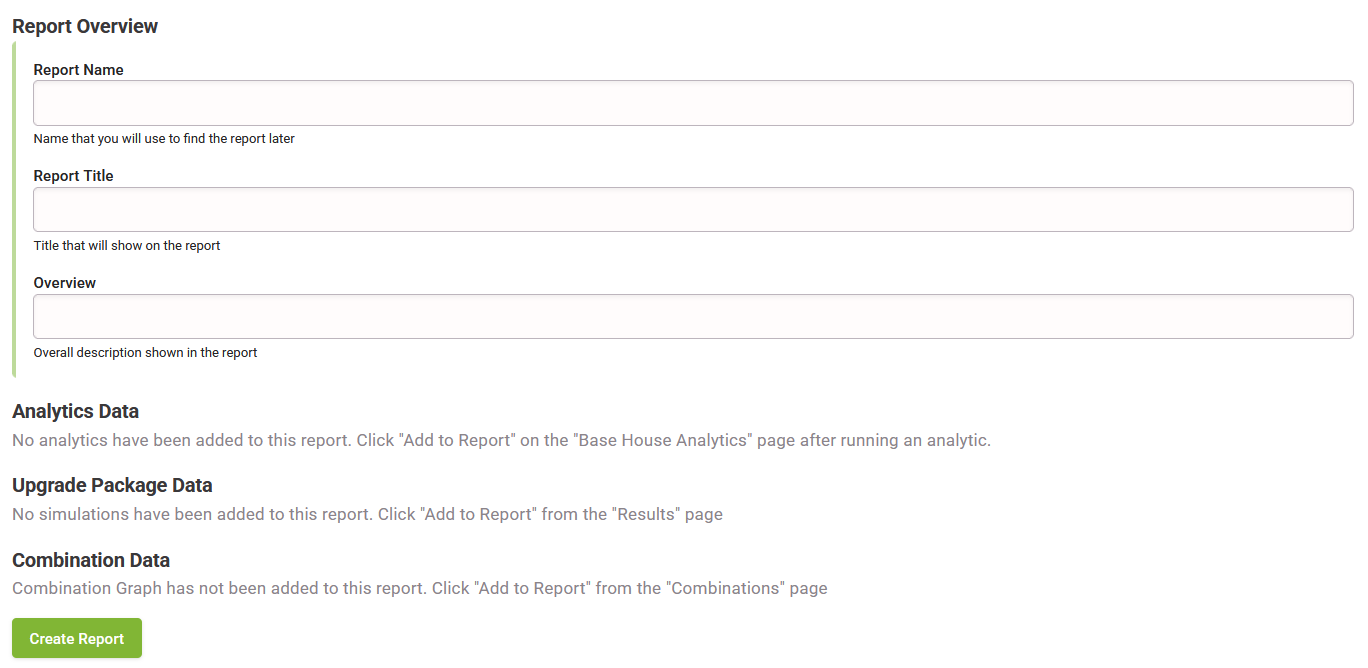
- Add a Report Name - this will not display on the Report.
- Add a Report Title - this will display on the Report.
- Add an Overview Description - this will display on the Report.
- Your Company Name and the last date the Report was edited will be shown.
- The Report will display the Building Code Metrics based on the file location. Eg. a House in BC will have the BC Building Code Metrics displayed while a house in Alberta will show the NBC Building Code Metrics.
- HEET will display the Base Data of your file.
- The results will look like this.
Adding Analytics Data
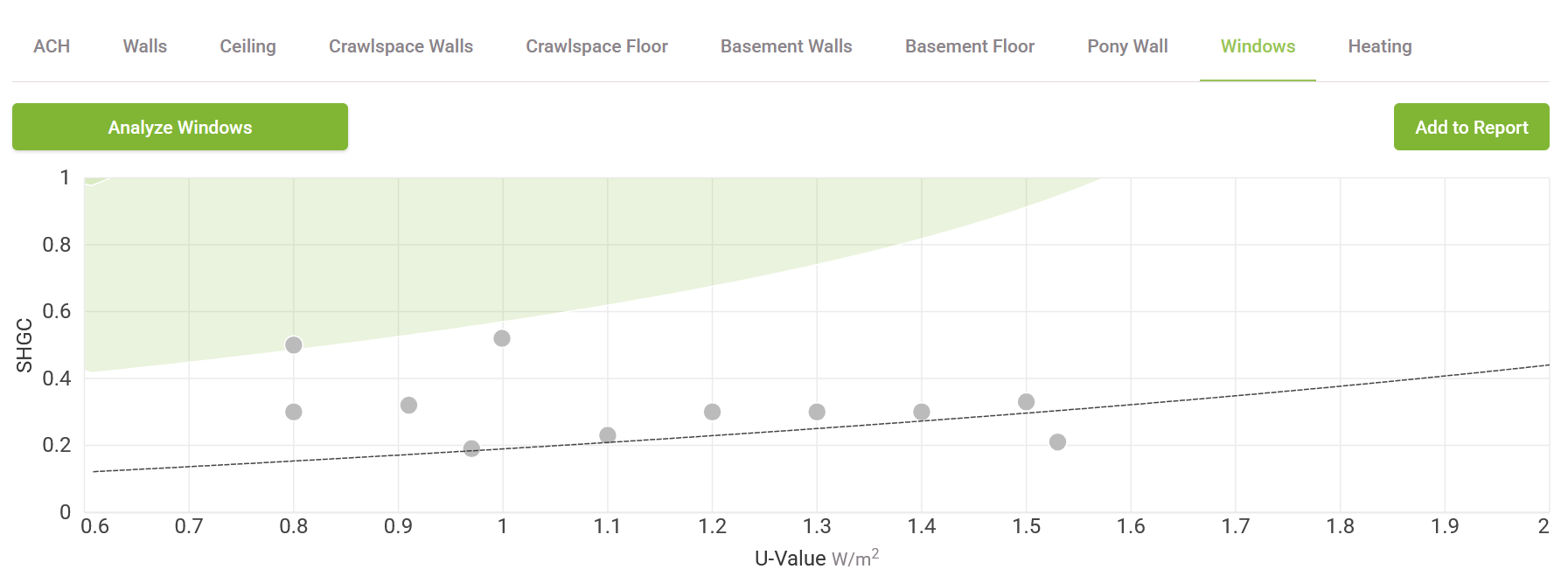
- Run the Analytic that you wish to add to your Report.
- Click the "Add to Report" button in the top right.
- An overlay will display. Select the Report to add the Analytic result to.
- You may add a description to the Analytic.
- If you add multiple Analytics to a Report, they will display in the order you add them.
- If you already have Analytics Data in the report, you can update or remove the results and description from here.
- The results will look like this.
Adding Upgrade Package Data
- Upgraded Houses can be added to the Report from the Results Page.
- Select the upgraded file.
- Below the Results Table and beside the Upgrades list will be some options to interact with the file.
- Beside the "Add to Report" option, press the "Add" button.
- Select the Report to add the upgraded file to.
- Add a Simulation Name - this will not display on the Report.
- Add a Description - this will display on the Report.
- The results will look like this.
Adding Combination Data
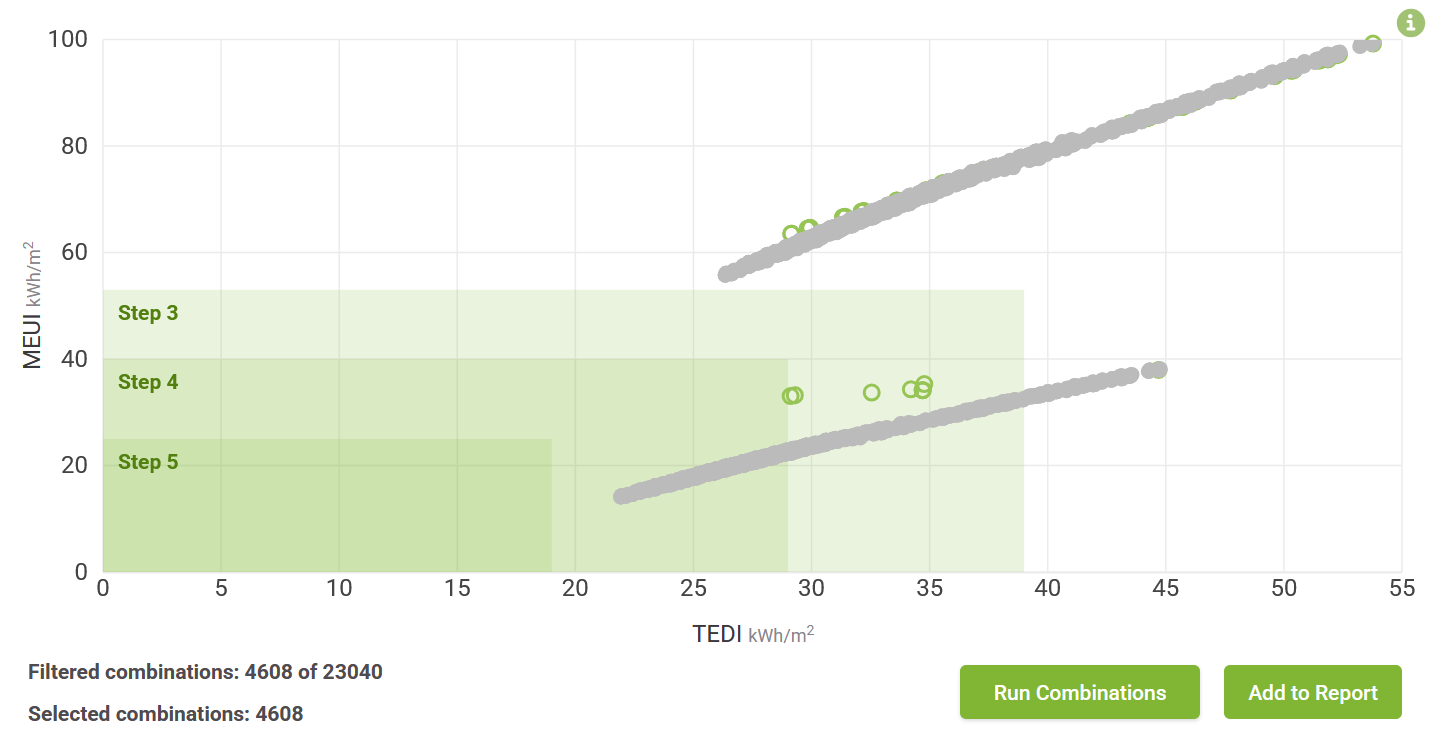
- Go to the Combination Page.
- Click the "Add to Report" button to the bottom right of the graph.
- Select the Report you want to add the Combination Graph to.
- Add a description to the Combination Graph.
- Click "Add to Report".
- If you already have Combination Data in the report, you can update or remove the results and description from here.
- The results will look like this.
Edit a Report
- From the Reports Page select a Report.
- Change the Report Name, Report Title or Overview by changing the text in the input box.
- Change the Analytics Data name/description, Upgrade Package Data name/description, or Combination Data description by changing the text in the input box.
- Remove Analytics Data, Upgrade Package Data, or Combination Data by clicking the Trash icon to the right of the input box.
- Click the Update button at the bottom of the Reports Page to confirm your changes.
- The date on the viewable Report will update when you press the Update button.
Delete a Report
- From the Reports Page select a Report.
- Click the Delete button at the bottom of the page.
Share a Report
- From the Reports Page select a Report.
- Click the Get Link button at the bottom of the page.
- Click the Copy Icon to the right of the generated link.